Free Print Templates
Free, print-ready artwork templates (PDF and SVG, plus Word for letterheads, compliment slips, A5 leaflets, A5 booklets and orders of service) with the bleed, trim, safe area, folds and cut lines marked. Pick your product, download the size you need, and delete the guides before you export your final artwork.
About our templates
Our print templates are free to download, with no login or email address needed. There is one for every product and size we print: business cards, leaflets, folded leaflets, stapled booklets, posters, stickers, letterheads, compliment slips, correx boards and roller banners.
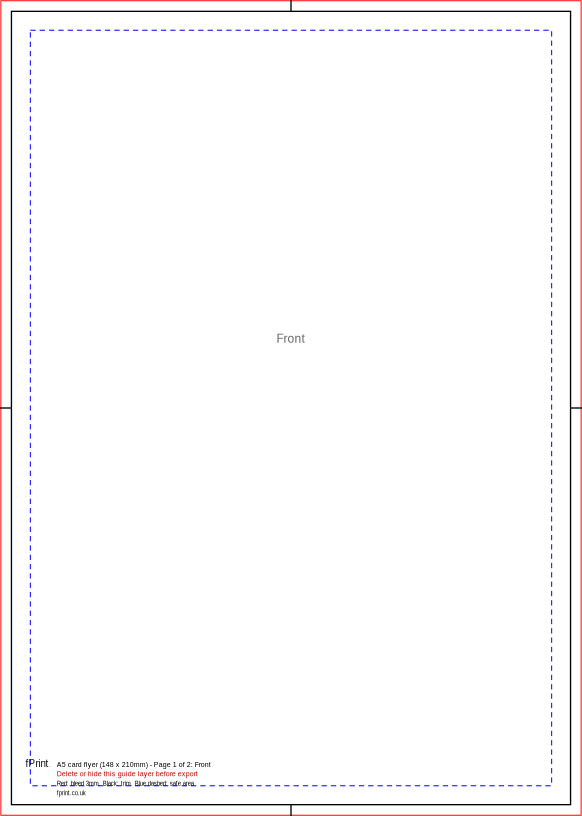
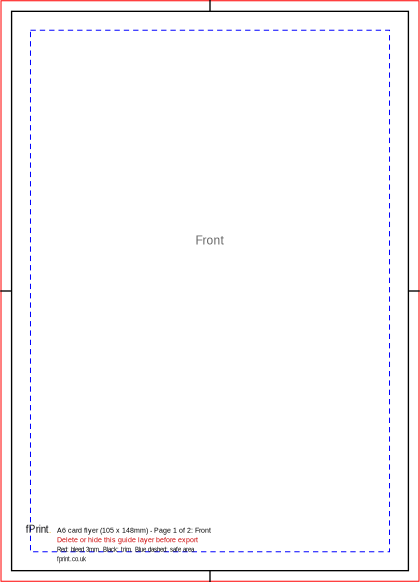
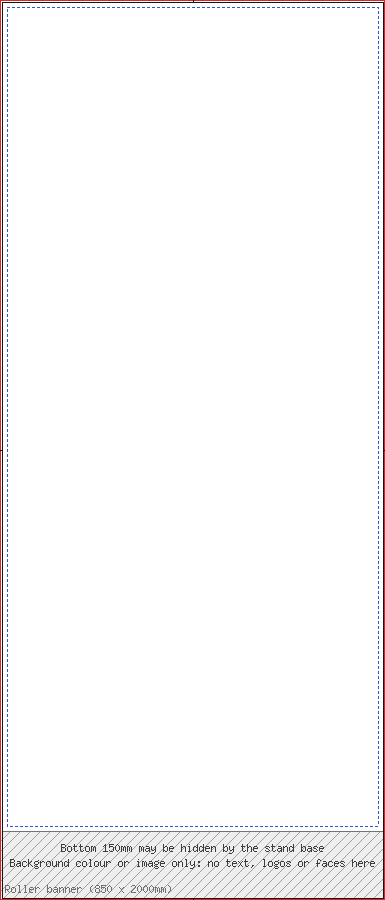
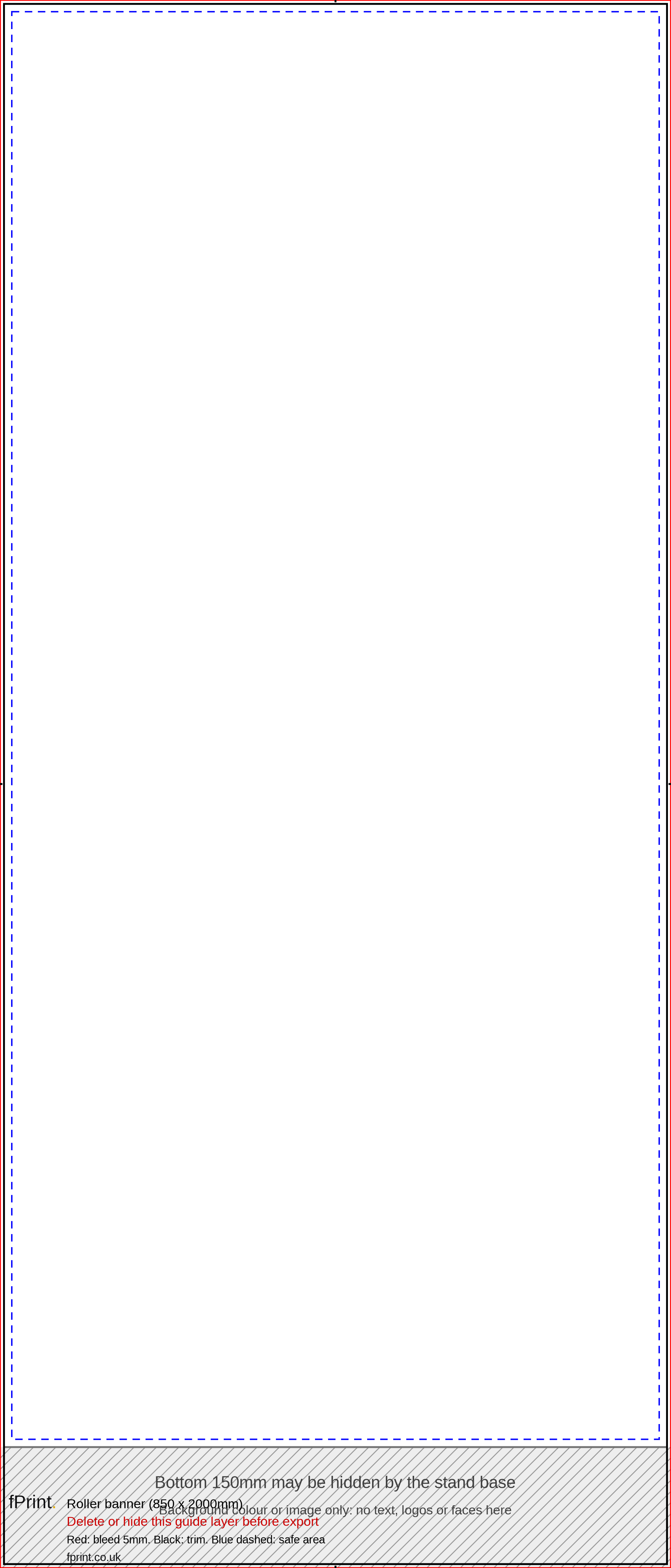
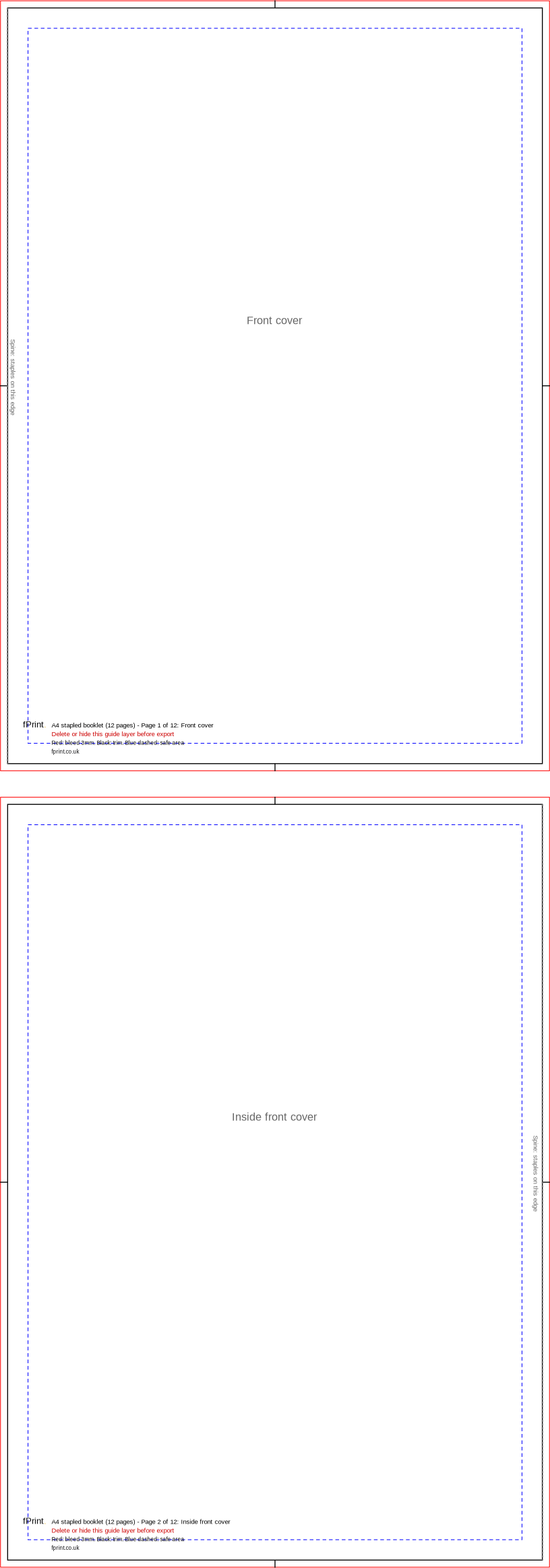
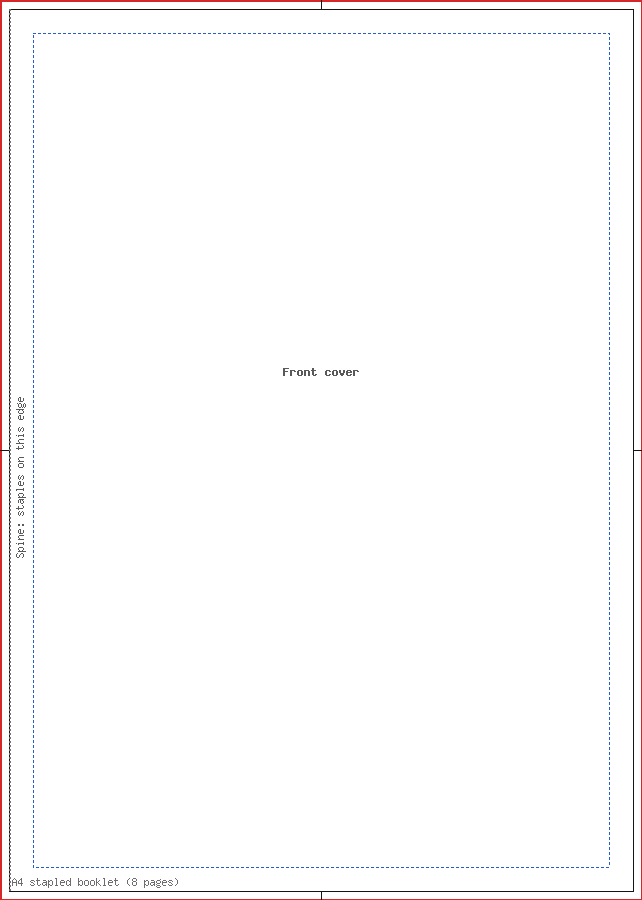
Each template is a blank page at the full artwork size, bleed included. The guides are drawn on it: the bleed edge, the trim (the cut line), the safe area for text, and, where your product has them, the folds with each panel's width, the cut circle on round stickers, the booklet spine and the part of a roller banner the stand may hide. Multi-page templates label every page, such as front and back, outside and inside, or front cover to back cover.
Download the PDF or the SVG, put your design on top, then delete or hide the guide layer and export a PDF. When you upload it, our automatic check looks at the size, bleed and resolution, and you see an on-screen proof on your order page; nothing is printed until you approve it.
New to bleed? Read what bleed and the safe area are. Working in Canva? Our guide to printing a Canva design with bleed covers the export settings.
A3 Flyers
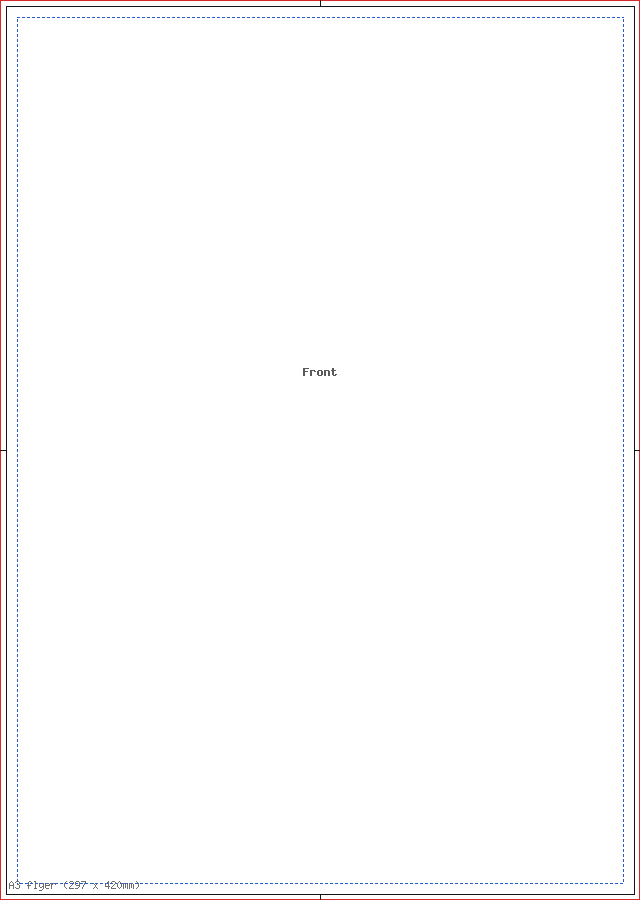
A3 flyer (297 x 420mm)
Bleed 3mm · Safe area 5mm · PDF, SVG
Aluminium Composite Signs
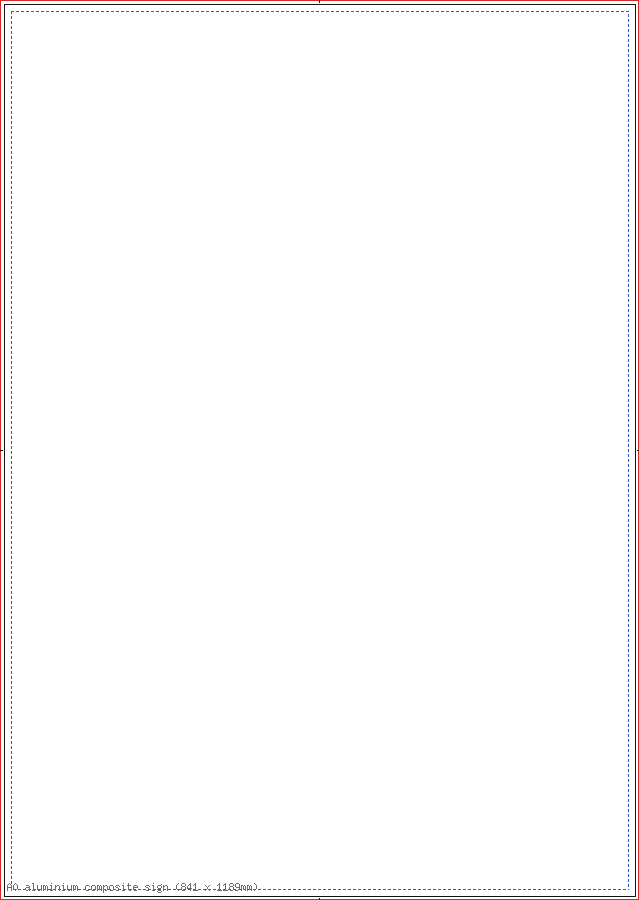
A0 aluminium composite sign (841 x 1189mm)
Bleed 5mm · Safe area 10mm · PDF, SVG
A1 aluminium composite sign (594 x 841mm)
Bleed 5mm · Safe area 10mm · PDF, SVG
A2 aluminium composite sign (420 x 594mm)
Bleed 5mm · Safe area 10mm · PDF, SVG
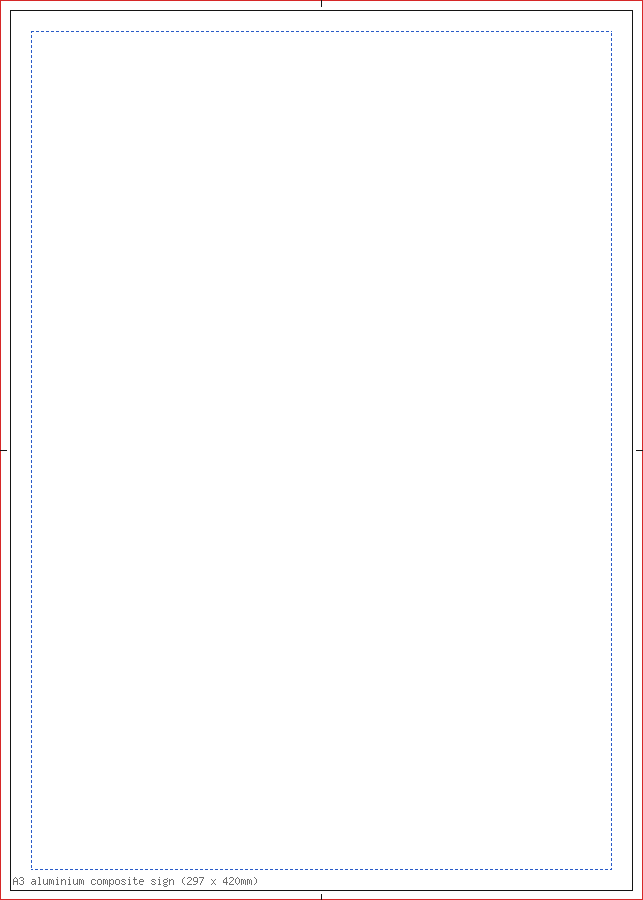
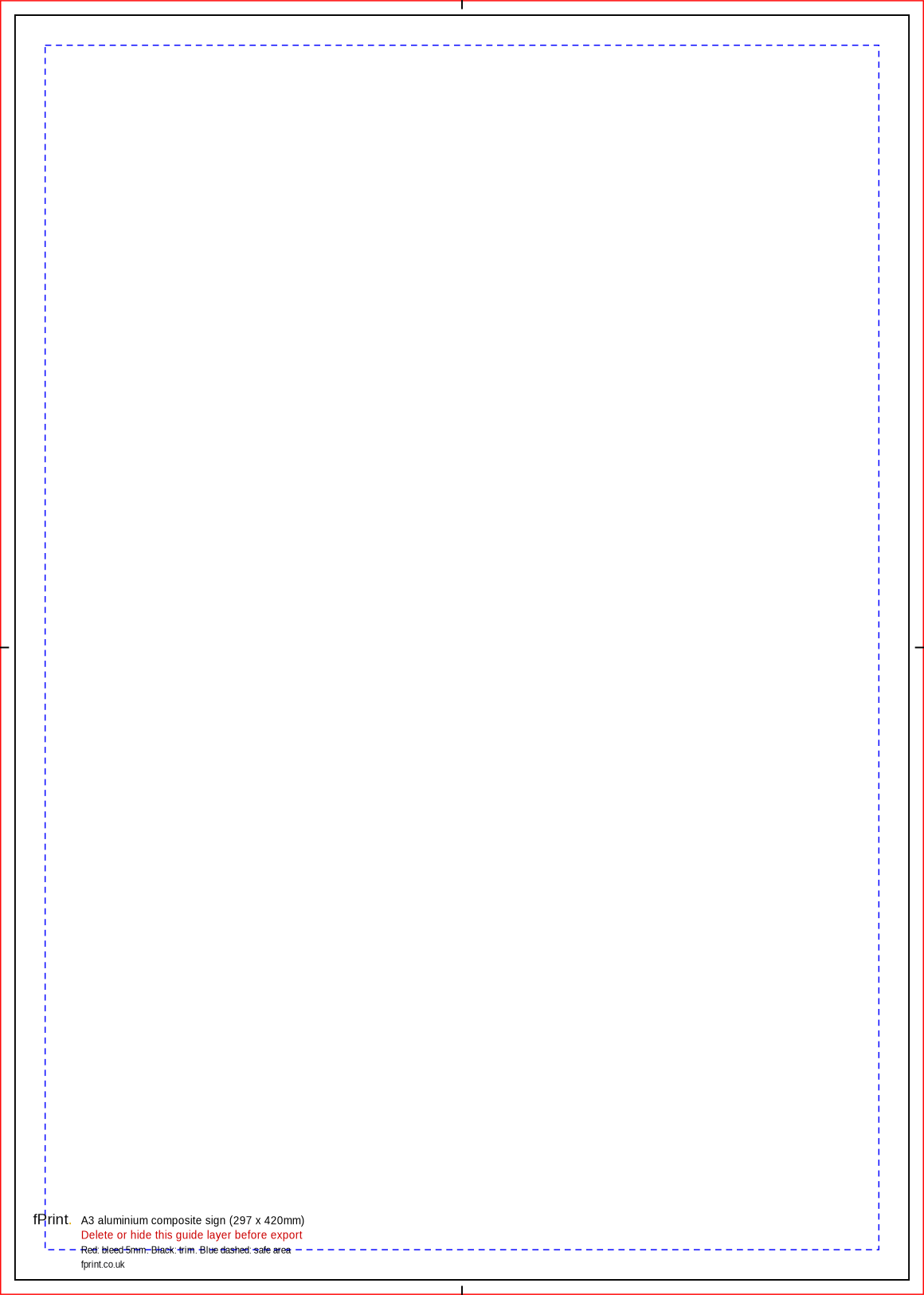
A3 aluminium composite sign (297 x 420mm)
Bleed 5mm · Safe area 10mm · PDF, SVG
Business Cards

Folded portrait business card (folds to 55 x 85mm, 110 x 85mm flat)
Bleed 3mm · Safe area 5mm · PDF, SVG


Folded business card (folds to 85 x 55mm, 170 x 55mm flat)
Bleed 3mm · Safe area 5mm · PDF, SVG


Square business card (55 x 55mm)
Bleed 3mm · Safe area 5mm · PDF, SVG


Business card portrait (55 x 85mm)
Bleed 3mm · Safe area 5mm · PDF, SVG


Business card (85 x 55mm)
Bleed 3mm · Safe area 5mm · PDF, SVG


Business card (90 x 50mm)
Bleed 3mm · Safe area 5mm · PDF, SVG

Card Flyers
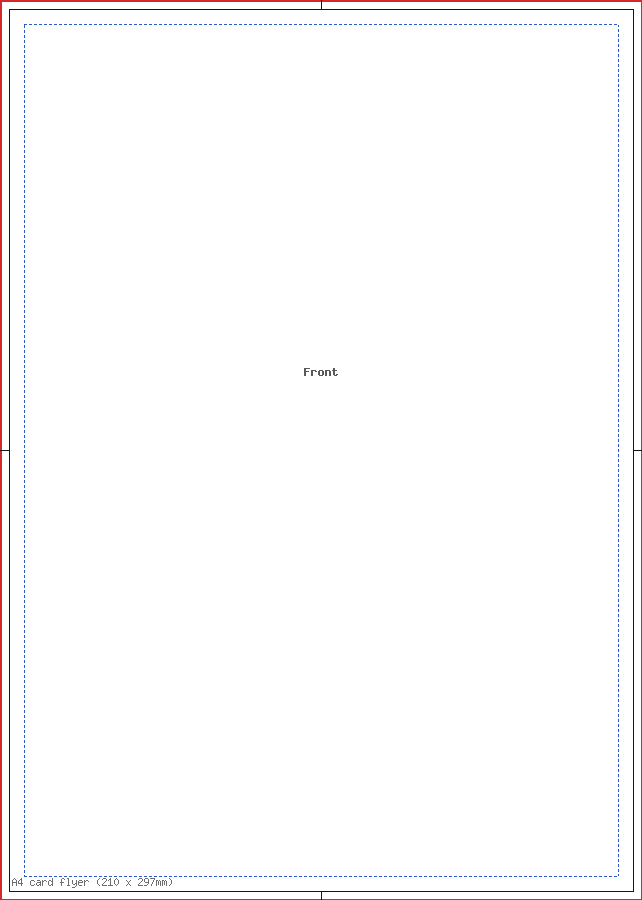
A4 card flyer (210 x 297mm)
Bleed 3mm · Safe area 5mm · PDF, SVG
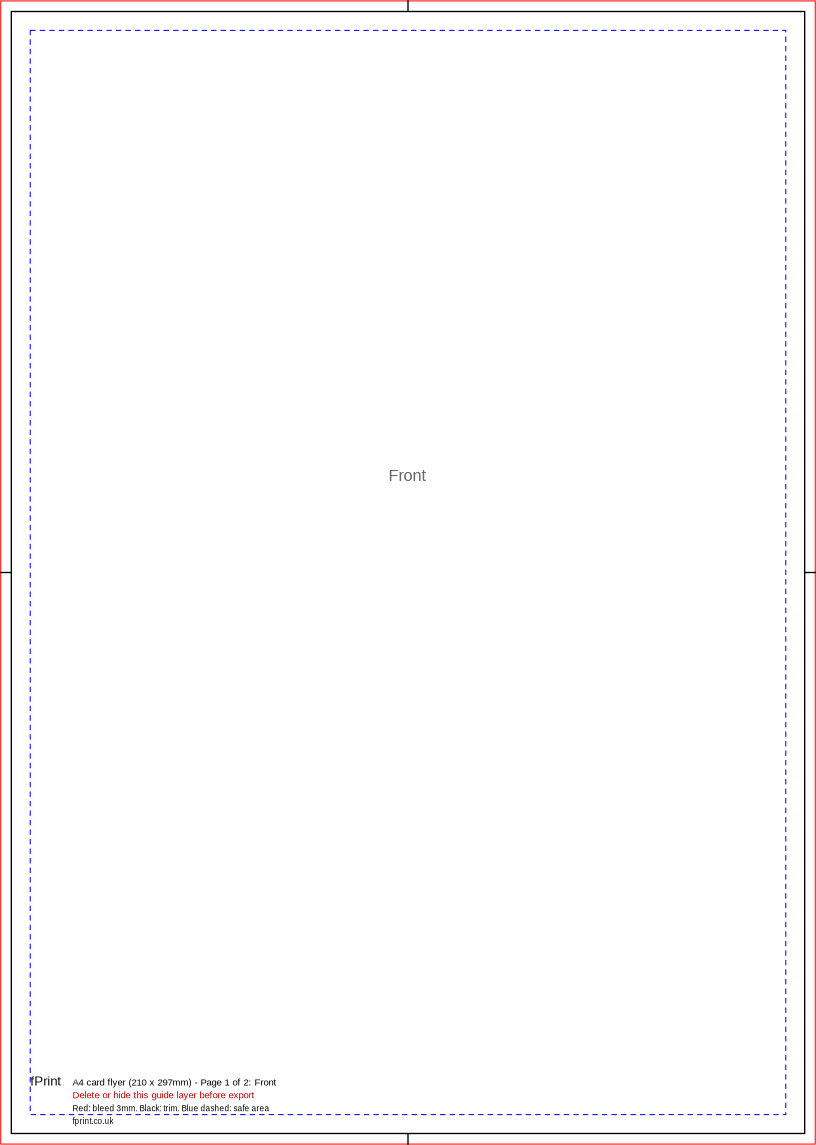
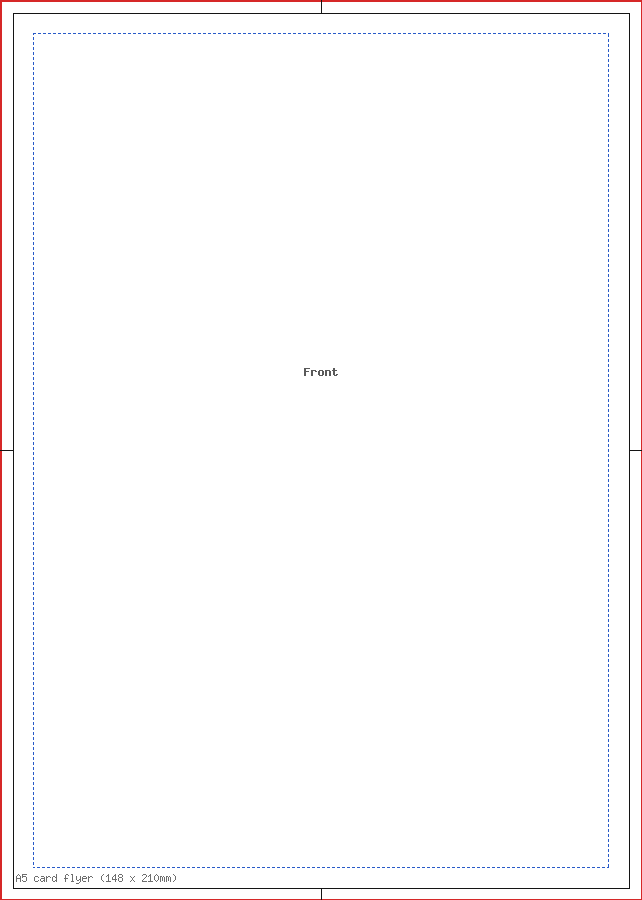
A5 card flyer (148 x 210mm)
Bleed 3mm · Safe area 5mm · PDF, SVG
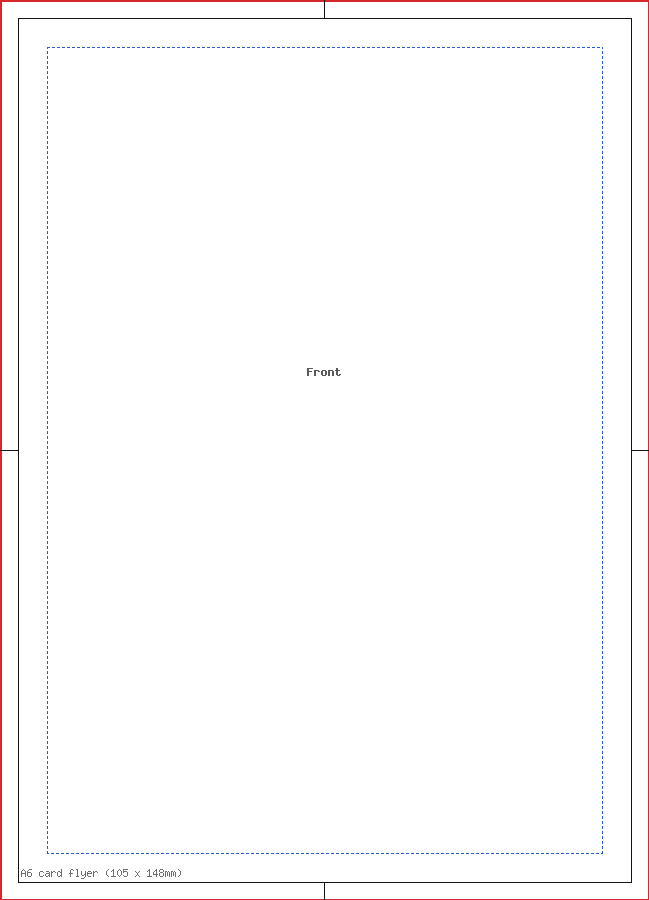
A6 card flyer (105 x 148mm)
Bleed 3mm · Safe area 5mm · PDF, SVG
Compliment Slips

DL compliment slip (210 x 99mm)
Bleed 3mm · Safe area 5mm · PDF, SVG, Word (DOCX)

Correx Boards
A0 correx board (841 x 1189mm)
Bleed 5mm · Safe area 10mm · PDF, SVG


A1 correx board (594 x 841mm)
Bleed 5mm · Safe area 10mm · PDF, SVG


A2 correx board (420 x 594mm)
Bleed 5mm · Safe area 10mm · PDF, SVG

A3 correx board (297 x 420mm)
Bleed 5mm · Safe area 10mm · PDF, SVG

Foamex Boards

A0 foamex board (841 x 1189mm)
Bleed 5mm · Safe area 10mm · PDF, SVG

A1 foamex board (594 x 841mm)
Bleed 5mm · Safe area 10mm · PDF, SVG


A2 foamex board (420 x 594mm)
Bleed 5mm · Safe area 10mm · PDF, SVG

A3 foamex board (297 x 420mm)
Bleed 5mm · Safe area 10mm · PDF, SVG

Folded Leaflets

A3 leaflet half folded to A4
Bleed 3mm · Safe area 5mm · PDF, SVG


A4 leaflet half folded to A5
Bleed 3mm · Safe area 5mm · PDF, SVG, Word (DOCX)


A4 leaflet half folded to X-long
Bleed 3mm · Safe area 5mm · PDF, SVG


A4 leaflet roll folded to DL
Bleed 3mm · Safe area 5mm · PDF, SVG


A4 leaflet Z folded to DL
Bleed 3mm · Safe area 5mm · PDF, SVG


A5 leaflet half folded to A6
Bleed 3mm · Safe area 5mm · PDF, SVG

Leaflets and Flyers

A-long leaflet (210 x 74mm)
Bleed 3mm · Safe area 5mm · PDF, SVG


A4 leaflet (210 x 297mm)
Bleed 3mm · Safe area 5mm · PDF, SVG


A5 leaflet (148 x 210mm)
Bleed 3mm · Safe area 5mm · PDF, SVG, Word (DOCX)

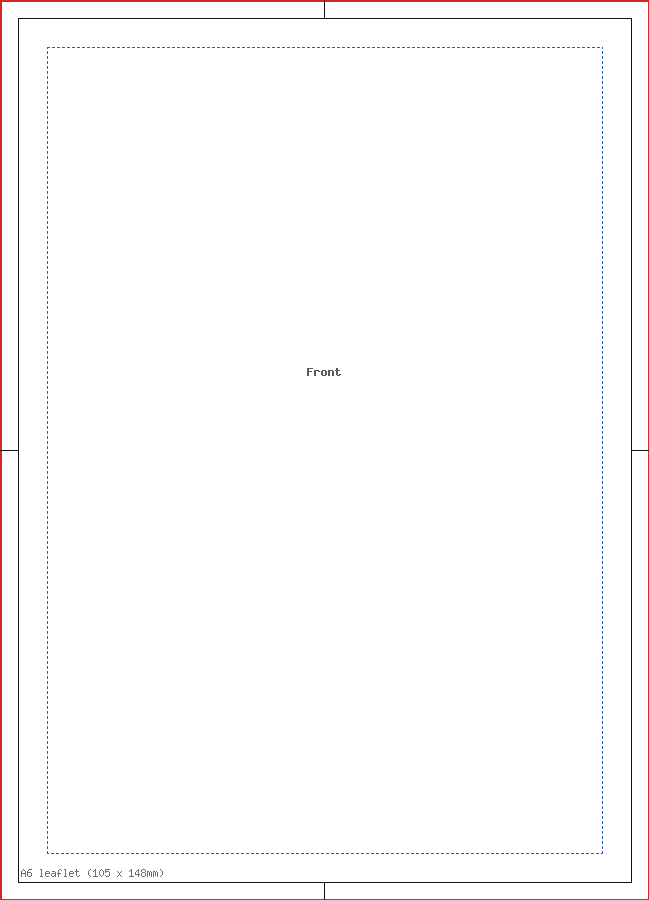
A6 leaflet (105 x 148mm)
Bleed 3mm · Safe area 5mm · PDF, SVG


A7 leaflet (74 x 105mm)
Bleed 3mm · Safe area 5mm · PDF, SVG


DL leaflet (99 x 210mm)
Bleed 3mm · Safe area 5mm · PDF, SVG


Large square leaflet (210 x 210mm)
Bleed 3mm · Safe area 5mm · PDF, SVG


Medium square leaflet (148 x 148mm)
Bleed 3mm · Safe area 5mm · PDF, SVG


Small square leaflet (105 x 105mm)
Bleed 3mm · Safe area 5mm · PDF, SVG


X-long leaflet (105 x 297mm)
Bleed 3mm · Safe area 5mm · PDF, SVG

Letterheads

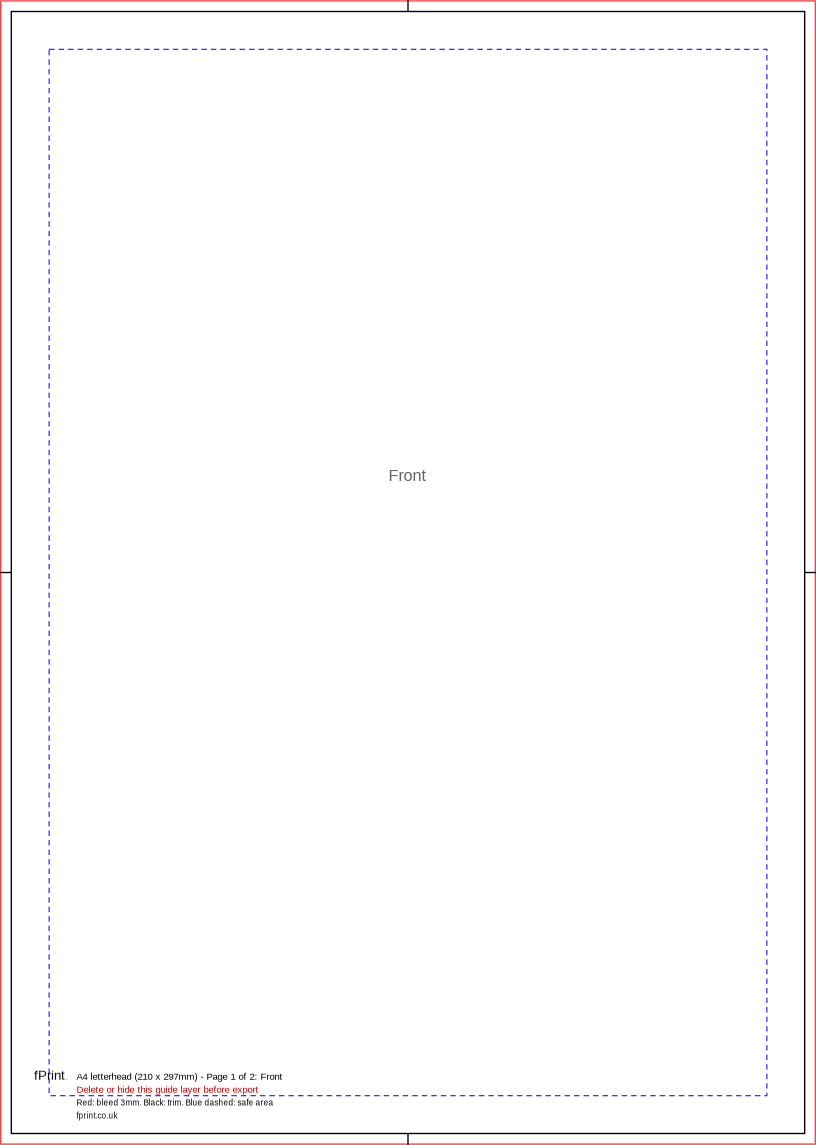
A4 letterhead (210 x 297mm)
Bleed 3mm · Safe area 10mm · PDF, SVG, Word (DOCX)
PVC Banners

PVC banner (1500 x 500mm)
Bleed 5mm · Safe area 50mm · PDF, SVG


PVC banner (2000 x 1000mm)
Bleed 5mm · Safe area 50mm · PDF, SVG

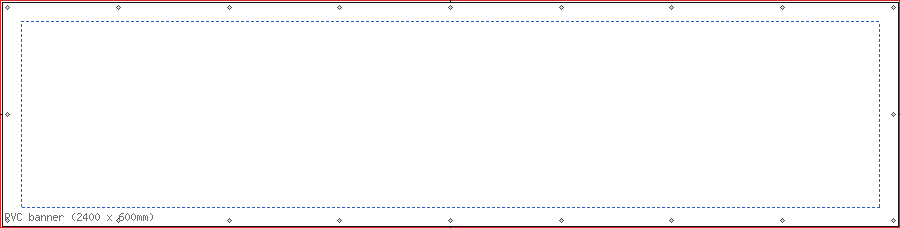
PVC banner (2400 x 600mm)
Bleed 5mm · Safe area 50mm · PDF, SVG
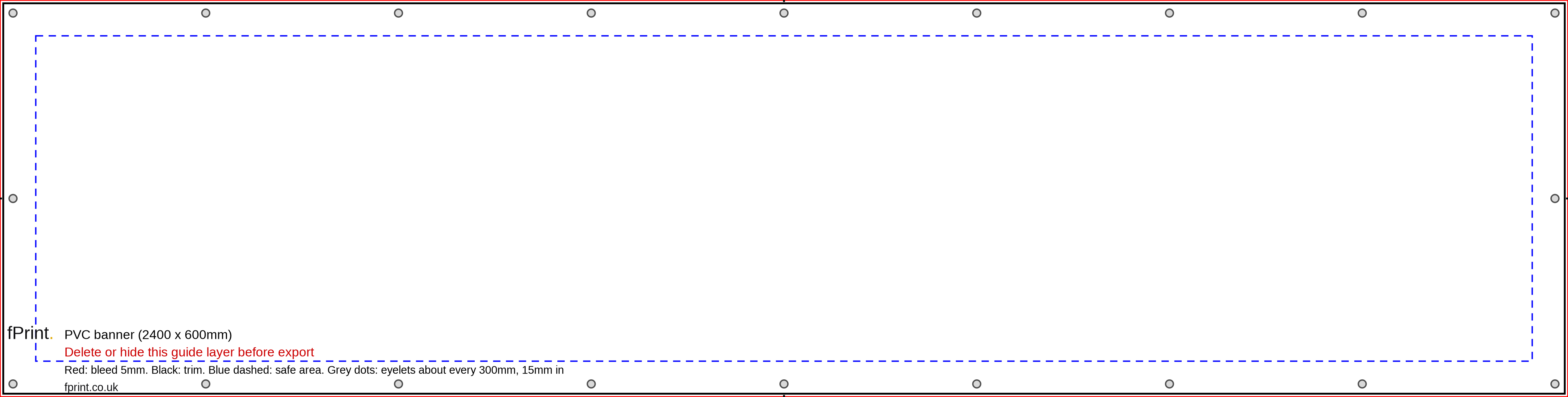

PVC banner (3000 x 1000mm)
Bleed 5mm · Safe area 50mm · PDF, SVG


PVC banner (4000 x 1000mm)
Bleed 5mm · Safe area 50mm · PDF, SVG

Posters

A0 poster (841 x 1189mm)
Bleed 3mm · Safe area 10mm · PDF, SVG


A1 poster (594 x 841mm)
Bleed 3mm · Safe area 10mm · PDF, SVG


A2 poster (420 x 594mm)
Bleed 3mm · Safe area 10mm · PDF, SVG


A3 poster (297 x 420mm)
Bleed 3mm · Safe area 10mm · PDF, SVG

Roller Banners

Roller banner (1000 x 2000mm)
Bleed 5mm · Safe area 10mm · PDF, SVG

Roller banner (850 x 2000mm)
Bleed 5mm · Safe area 10mm · PDF, SVG
Stapled Booklets

A4 stapled booklet (12 pages)
Bleed 3mm · Safe area 8mm · PDF, SVG

A4 stapled booklet (16 pages)
Bleed 3mm · Safe area 8mm · PDF, SVG


A4 stapled booklet (20 pages)
Bleed 3mm · Safe area 8mm · PDF, SVG


A4 stapled booklet (24 pages)
Bleed 3mm · Safe area 8mm · PDF, SVG

A4 stapled booklet (8 pages)
Bleed 3mm · Safe area 8mm · PDF, SVG


A5 stapled booklet (12 pages)
Bleed 3mm · Safe area 8mm · PDF, SVG

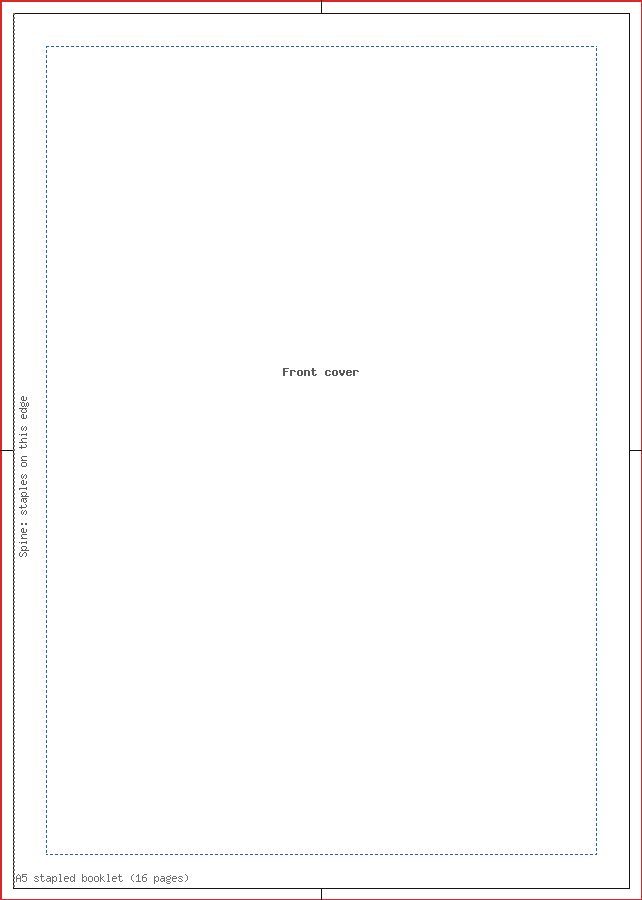
A5 stapled booklet (16 pages)
Bleed 3mm · Safe area 8mm · PDF, SVG


A5 stapled booklet (20 pages)
Bleed 3mm · Safe area 8mm · PDF, SVG


A5 stapled booklet (24 pages)
Bleed 3mm · Safe area 8mm · PDF, SVG

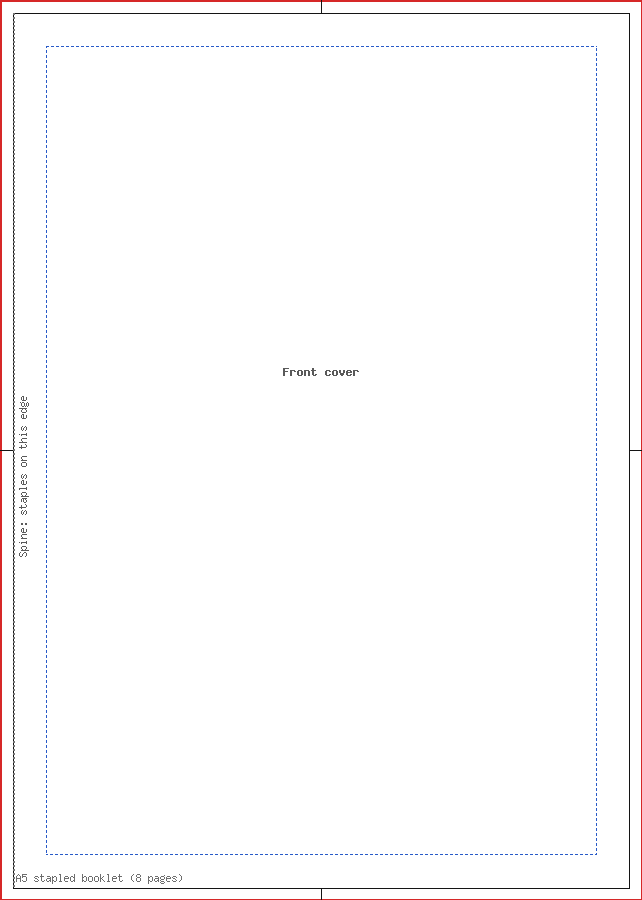
A5 stapled booklet (8 pages)
Bleed 3mm · Safe area 8mm · PDF, SVG, Word (DOCX)

Sticker Sheets
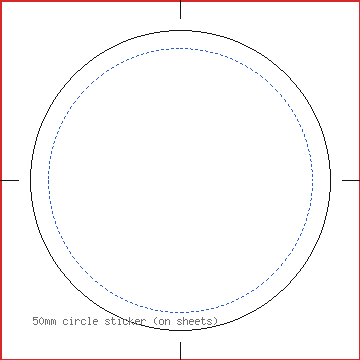
50mm circle sticker (on sheets)
Bleed 5mm · Safe area 3mm · PDF, SVG

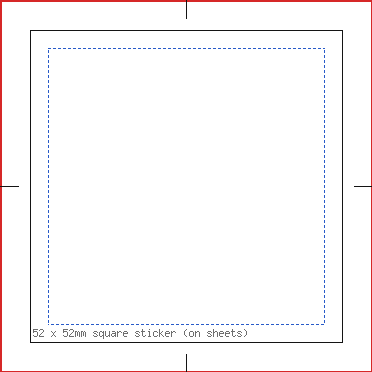
52 x 52mm square sticker (on sheets)
Bleed 5mm · Safe area 3mm · PDF, SVG
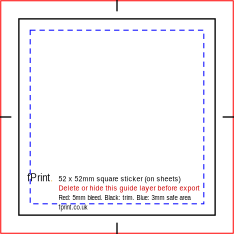

55 x 85mm rectangle sticker (on sheets)
Bleed 5mm · Safe area 3mm · PDF, SVG

Stickers
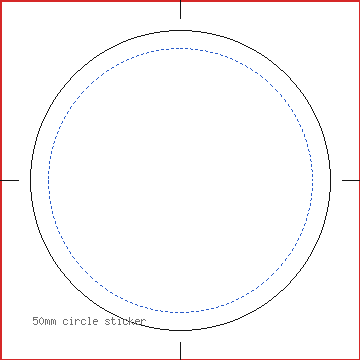
50mm circle sticker
Bleed 5mm · Safe area 3mm · PDF, SVG


50 x 50mm square sticker
Bleed 5mm · Safe area 3mm · PDF, SVG


55 x 85mm rectangle sticker
Bleed 5mm · Safe area 3mm · PDF, SVG
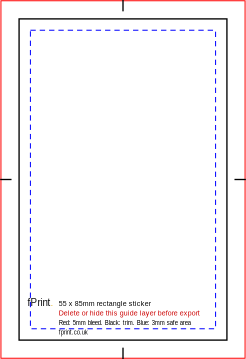
What the guides on each template mean
The guides use colour and line style together, so you can tell them apart in greyscale or with colour blindness.
| Mark | Colour and line | What it means |
|---|---|---|
| Bleed edge | Red, thin solid line round the very edge of the page | The edge of your artwork. Backgrounds and images run all the way to it. It is trimmed off. |
| Trim line | Black, solid line, with short black centre marks in the bleed | Where the sheet is cut to its finished size. |
| Safe area | Blue, short dashes | Keep text, logos and anything important inside this line. |
| Fold | Pink, longer dashes across the whole sheet, labelled "Fold at ...mm" | Where a folded leaflet is creased. Each panel is named and its width given. |
| Cut line (round stickers) | Black, solid circle | The shape the sticker is cut to. A blue dashed circle inside it is the safe area. |
| Spine (booklets) | Grey, short dotted line, thicker than the others, labelled "Spine: staples on this edge" | The stapled edge of each booklet page. |
| Hidden zone (roller banners) | Grey diagonal hatching, topped by a solid grey line | The part the stand base may hide. Background only here. |
A label block near the bottom of each page gives the template name, the page number and label, a one-line legend, and a red note: "Delete or hide this guide layer before export".
The guides sit on their own layer. In the PDF that layer is set not to print, but delete or hide it anyway before you export, so nothing of the template is left in your file.
Using the templates
Which file to use
| Program | File to open | How to use it |
|---|---|---|
| Adobe Illustrator | PDF or SVG | Open it directly. Lock the guide layer and design on a new layer above it. |
| Adobe InDesign | Make a document at the trim size with the bleed shown on the template page, then place the PDF on a locked layer of its own. | |
| Affinity Designer or Publisher | PDF or SVG | Open it directly, lock the guide layer and design above it. |
| Inkscape (free) | SVG | Open it: the page is the artwork size in millimetres and the guides are a layer you can lock. |
| Canva | SVG | Make a design at the size shown on the template page, upload the SVG and use it as a guide, then delete it before you download. |
| Microsoft Word | PDF, as a reference | Word has no bleed setting. Set the page to the full artwork size with zero margins, run backgrounds to the edge and keep text inside the safe area. |
Step-by-step instructions for each program are in how to use our print templates. Each template page also lists the Canva custom size for every template, so you can set up a design without measuring.
Before you export
- Use CMYK where your program allows it, with images at 300dpi at full size (150dpi is fine on posters from A1 up, correx boards and banners).
- Keep text at 6pt or larger and lines at 0.25pt or thicker.
- Embed or outline your fonts.
- Delete or hide the guide layer.
The full checklist is in our artwork guidelines.
Questions
Are the templates really free?
Yes. Every template is free to download, and you don't need an account, a login or an email address. You don't have to order from us to use them, although the sizes, bleed and safe areas match the products we print. If you do order, upload your finished PDF on the product page and our automatic check compares it with the size you chose before you see the on-screen proof.
Should I download the PDF or the SVG?
Use the PDF in Illustrator, InDesign or Affinity, and as a reference if you work in Word. Use the SVG in Canva, Inkscape or any program that imports vector images. Both show the same guides on their own layer. The PDF page is the full artwork size with the trim marked, so design apps and our file check can read where the cut falls.
Do I need to remove the guide lines before I upload?
Yes. Delete or hide the guide layer before you export your final PDF. In our PDF the layer is set not to print, but other programs may not keep that setting, and in Canva an uploaded SVG prints like any other image. If guide lines show in your on-screen proof, go back, remove them and upload again.
What do the colours and dashed lines mean?
Red solid is the bleed edge, black solid is the trim (cut) line, blue short dashes are the safe area, and pink long dashes are folds. On booklets a grey dotted line marks the stapled spine edge, and on roller banners grey hatching marks the part the stand may hide. The legend is also printed on every page of the template.
Can I use the templates in Canva?
Yes. Create a design at the custom size shown on the template page, upload our SVG, stretch it to fill the page and design over it. Delete the SVG before you download your design as a PDF. Stickers, correx boards and roller banners need 5mm bleed, so for those enter the full page size rather than relying on Canva's own bleed setting.