Card Flyers artwork templates
Free, print-ready templates (PDF and SVG) for every size and option of our card flyers, with the bleed, trim and safe area marked, and the folds, cut lines and page labels where your product has them.
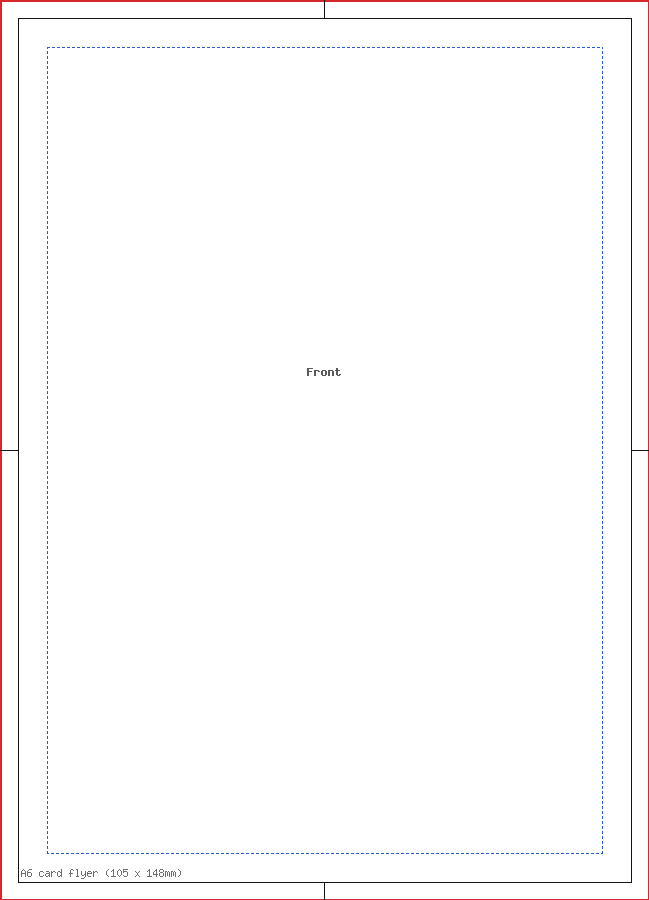
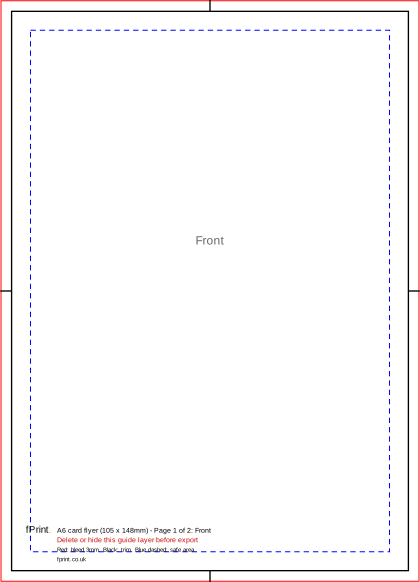
A6 card flyer (105 x 148mm)
| Trim size | 105 x 148mm |
|---|---|
| Bleed | 3mm |
| Safe area | 5mm inside trim |
| Pages/panels | 2 |
Page 1 is the front and page 2 the back; for single-sided card flyers supply page 1 only. Each page is 111 x 154mm with 3mm bleed. Keep text 5mm inside the trim. Landscape works too: turn the page.
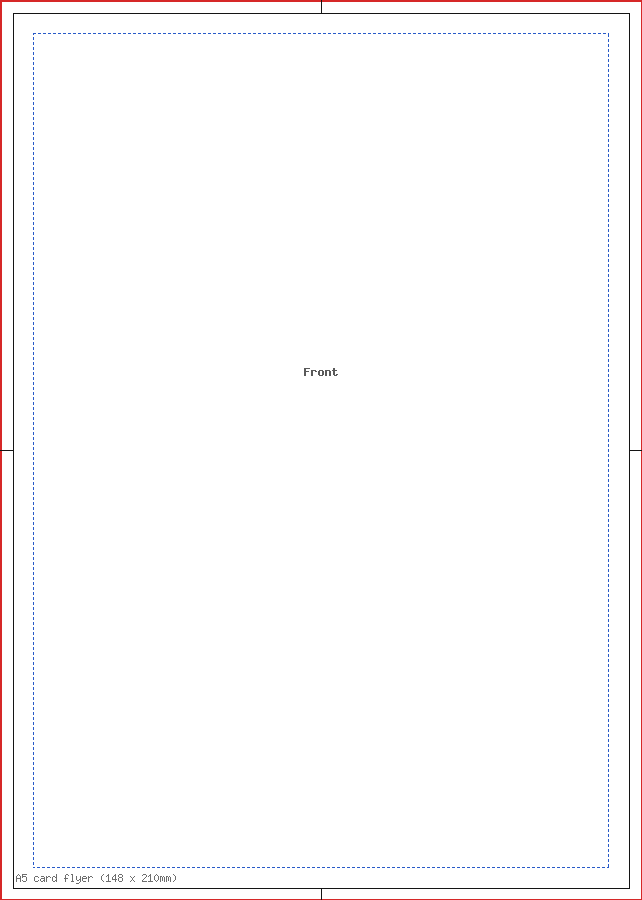
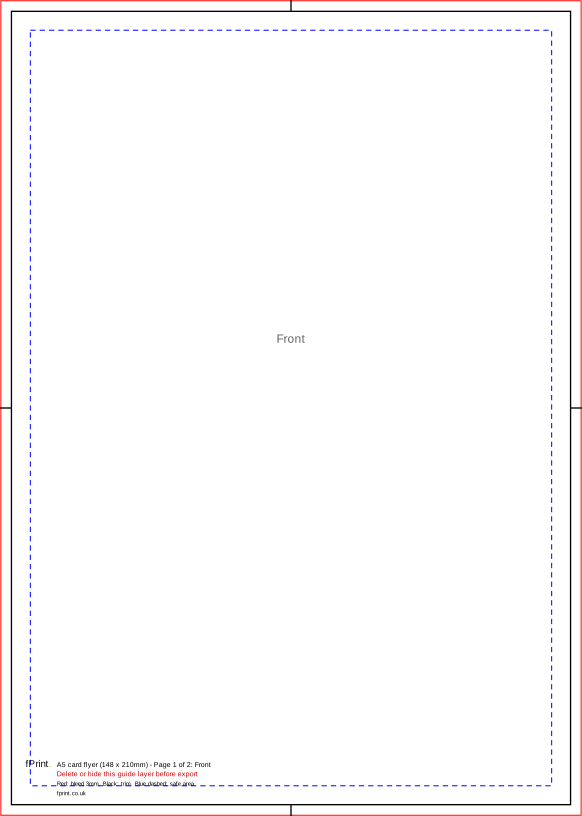
A5 card flyer (148 x 210mm)
| Trim size | 148 x 210mm |
|---|---|
| Bleed | 3mm |
| Safe area | 5mm inside trim |
| Pages/panels | 2 |
Page 1 is the front and page 2 the back; for single-sided card flyers supply page 1 only. Each page is 154 x 216mm with 3mm bleed. Keep text 5mm inside the trim. Landscape works too: turn the page.
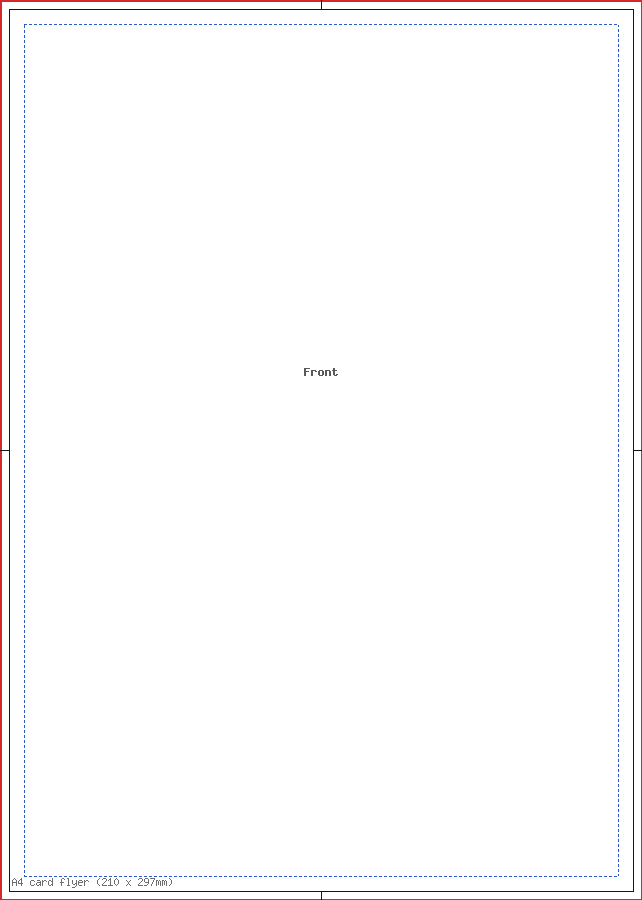
A4 card flyer (210 x 297mm)
| Trim size | 210 x 297mm |
|---|---|
| Bleed | 3mm |
| Safe area | 5mm inside trim |
| Pages/panels | 2 |
Page 1 is the front and page 2 the back; for single-sided card flyers supply page 1 only. Each page is 216 x 303mm with 3mm bleed. Keep text 5mm inside the trim. Landscape works too: turn the page.
Using this template
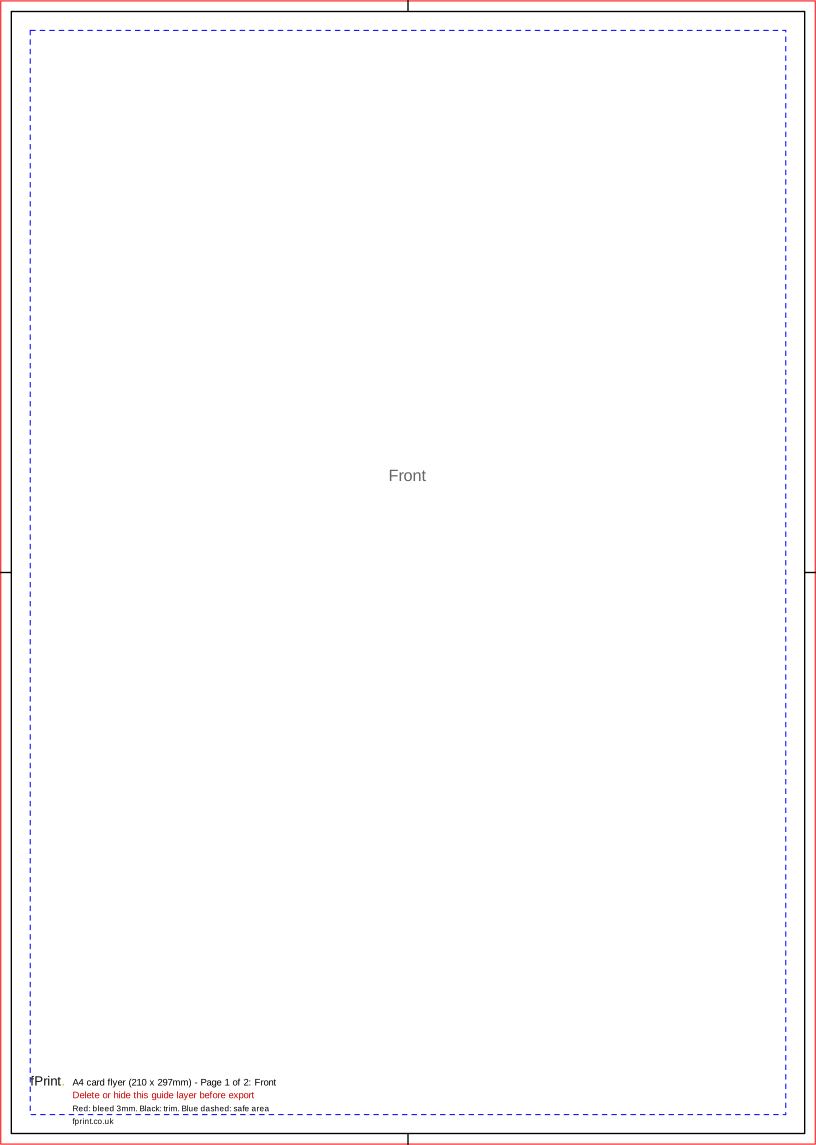
Every template is a page at the full artwork size, bleed included, with the guides drawn on it: the bleed edge in red, the trim (cut) line in black, the safe area in blue dashes, and where they apply the folds in pink dashes with each panel's width, the cut circle on round stickers, the hatched zone a roller banner stand hides, the eyelets on a PVC banner and the spine edge of a booklet page. Multi-page templates label each page: front and back, outside and inside, or front cover to back cover.
The guides sit on their own layer, named "Guides - Delete or hide this guide layer before export". In the PDF that layer is set not to print, but delete or hide it anyway before you export your finished file, so nothing of the template is left in your artwork. The SVG version has the same guides as a named group (a layer in Inkscape and Illustrator).
Canva
Create a design with custom dimensions at the trim size (for example 148 x 210mm for an A5 leaflet) and turn on Show print bleed, which adds 3mm. For stickers, correx boards and roller banners, which need 5mm, set the design to the full page size shown in the notes instead. Upload our SVG to see where the folds, safe area and hidden zones fall, keep it on the page while you design, then delete it before you download as PDF Print with crop marks and bleed.
Adobe InDesign
Create a document at the trim size with the bleed shown above, then File → Place our PDF on a layer of its own, aligned to the bleed edge. Lock that layer, design on a layer above it, and delete or hide the template layer before you export.
Adobe Illustrator and Affinity
Open the PDF or SVG directly: the artboard is already the full size with bleed. Lock the guide layer, design on a new layer above it, and delete or hide the guides before you export a PDF.
Inkscape
Open the SVG: the page is the artwork size in millimetres and the guides are a layer you can lock. Design on a new layer, then hide or delete the guide layer and save a copy as PDF.
Microsoft Word
Word has no bleed setting, so set the page size to the full artwork size with bleed (Layout → Size → More Paper Sizes), stretch backgrounds to the edge and keep text inside the safe area. For folded leaflets and booklets a design app is much easier.